
How Receipt Scanning Simplifies Expense Tracking
I can cut receipt admin down to a few seconds per purchase by scanning each slip when I get it. That means fewer lost receipts, less typing, and cleaner records for jobs, VAT, cash flow, and tax.
Here’s the short version:
- A receipt scan turns paper into a digital record with the supplier, date, total, and often VAT pulled in by OCR.
- Scanning on the spot helps stop lost and faded receipts, which is a common problem with thermal paper.
- Jobs, categories, and UK VAT settings should be set first so each expense lands in the right place.
- Daily costs like fuel, parking, tools, and materials are easier to track when I tag them to the right job there and then.
- Weekly checks help fix OCR mistakes early, especially on crumpled or faint receipts.
- Exporting records for bookkeeping and HMRC is much easier when dates, amounts, categories, and VAT are already stored digitally.
- MTD matters more from April 2026 for sole traders over £50,000, because digital records need a clear link to tax submission.
- Digital copies are accepted by HMRC if they are legible and stored in a usable digital format.
- Record-keeping still matters: usually 6 years for VAT records, or 5 years after the 31 January deadline for sole traders.
A few numbers stand out:
- OCR on clear printed receipts is often around 90–95% accurate
- Automated receipt logging can save around 2–4 hours a week
- Manual bookkeeping can cost a sole trader about £2,600 a year in lost time
So the main point is simple: scan the receipt, tag it to the job, check the figures, and store it safely. I end up with less paper, less end-of-month sorting, and cleaner expense records.
How to set up a receipt scanning workflow
Set the workflow up once, and each receipt can land in the right job, category and record with far less fixing later. That matters more than most people think. Good defaults turn a receipt into a usable expense record, not just another photo sitting in your camera roll.
Once those defaults are in place, every scan can drop into the right job with minimal manual input.
Set up jobs, categories and UK settings first
Start with job names or project codes that match the work you do in real life, such as "Johnson Bathroom Refit" or "Unit 4 Rewire". Then set your expense categories. For most tradesmen, the main ones are materials, fuel, van costs, tools and subsistence.
Make sure the app is set to GBP (£), uses the DD/MM/YYYY date format, and has UK VAT settings switched on. Using the right UK format and VAT setup helps keep your records HMRC-ready.
If you buy from the same places again and again - say, Screwfix for materials or a local petrol station for fuel - set default category rules for those merchants. Then, when a receipt from that supplier is scanned, it can already be sorted correctly without extra tapping.
Once the filing rules are set, switch on backup so those records stay protected.
Turn on scanning, backup and secure storage
Allow camera access and switch on automatic cloud backup. Receipts need to be kept for the required retention period, so backup helps protect records if your phone is lost or damaged. If those records stay backed up, your job costs stay complete when you export them later.
In Site Wallet, encrypted storage is built in. So once a receipt is scanned and saved, it is backed up securely without extra steps on your part.
After setup, the part that makes this work is simple: do it the same way every time. Scan straight away and check each record before moving on.
Build habits that keep records accurate
Scan receipts at the point of purchase - at the fuel pump, trade counter or builders' merchant. Then check the amount, date, supplier and VAT before you save the record. It only takes a moment, and it can save a lot of tidying up later.
Clear receipts usually scan well, but faded or crumpled slips can still lead to errors. A five-minute weekly review helps catch small mistakes before they pile up.
sbb-itb-12417dd
How to use receipt scanning for daily site expenses
Scan and tag purchases by job
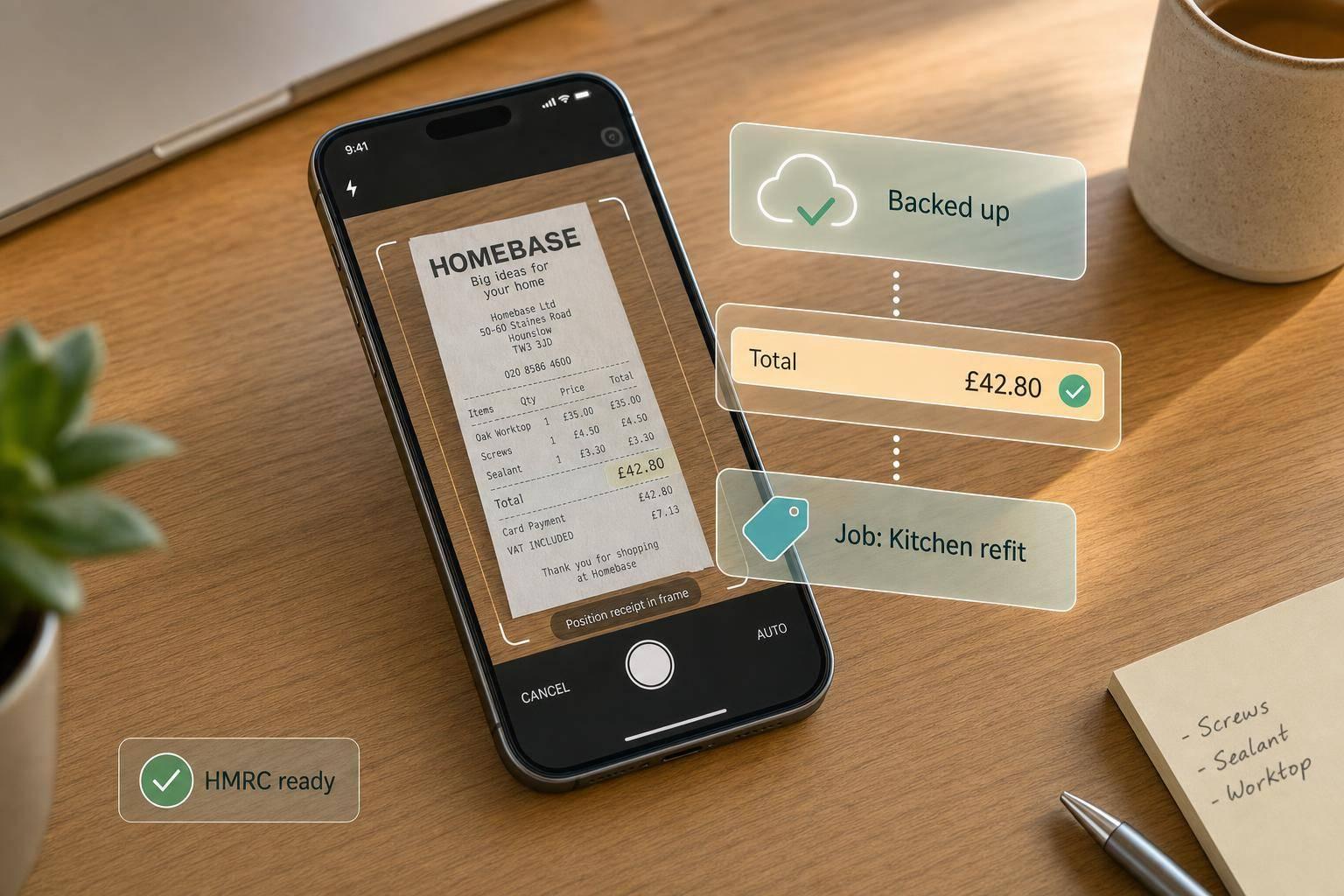
Once the workflow is in place, logging daily expenses becomes part of the day-to-day routine. Jobs and categories are already set up, so scanning only takes a few seconds: open the app, take a photo of the receipt, tag it to the right job and category - such as "Kitchen Refit" or "Roof Repair" - then choose a category like materials or fuel.
For a cleaner scan, place the receipt on a dark, plain surface. If the purchase is high-value or a bit out of the ordinary, give it a quick check before saving. After that, each saved receipt goes straight into the job record.
Track petty cash, fuel and small purchases in one place
The same scan keeps petty cash in check too. Fuel stops, parking, and small purchases like fixings are easy to forget one by one, but across a job they can stack up fast.
With Site Wallet, each spend logged against the right cash float - whether it’s a box of cable ties from Screwfix or diesel for the generator - cuts the balance automatically. That means the running total stays up to date, with no need to wait until the end-of-week handover to see where things stand.
Cut missing receipts and duplicate admin
Scanning at the point of purchase stops receipts ending up in coat pockets or stuffed in the glovebox. Duplicate entries are flagged before saving, and each team member can log their own purchases as they happen.
The result is simple: fewer missing receipts, fewer duplicate entries, and a cleaner audit trail. It also means less time spent chasing paperwork. Automated receipt capture can save a sole trader between 2 and 4 hours per week on manual data entry alone - time that is better spent on the tools. Those records then roll straight into job costing and exportable reports.
Connect scanned receipts to cash flow and reporting
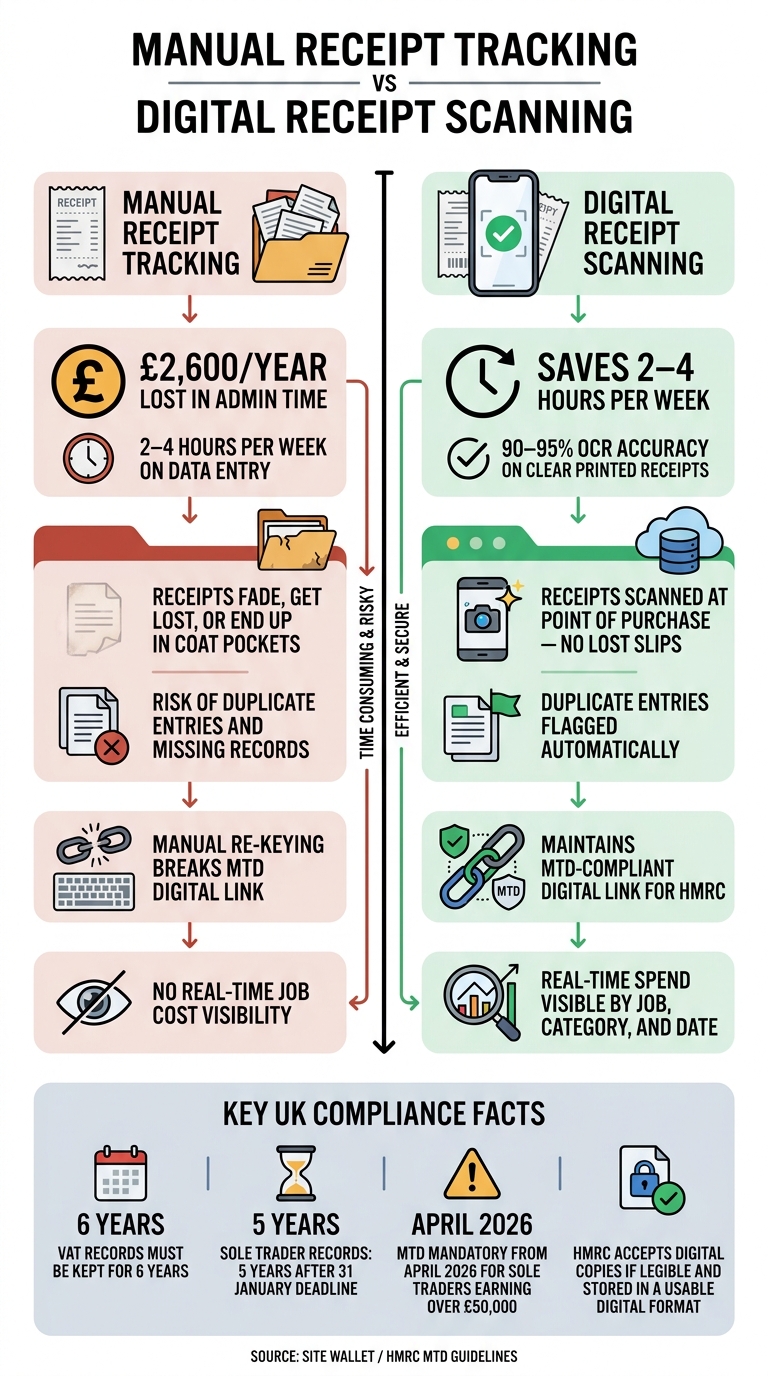
Receipt Scanning vs Manual Tracking: Time, Cost & Accuracy for UK Tradesmen
View spend by job, category and date range
Once receipts are tagged on site, the same data flows into job totals, cash flow and tax records. One scan turns a purchase into a usable expense record. Tag it to a job, and it goes straight into that job’s totals, so spend stays visible in real time.
That matters when costs start to drift. If materials or fuel begin to go over budget, you can filter by job, category or date range and spot the issue early. So each scan helps there and then, not only at month-end.
Export records for bookkeeping and tax time
When records are already tagged and accurate, exporting them takes seconds. For UK tradesmen, that can mean exporting the full tax year - for example, 06/04/2026 to 05/04/2027 - with transaction dates, amounts, categories and VAT kept together in one export.
Under Making Tax Digital (MTD), from April 2026, sole traders earning above £50,000 must keep a digital link between their records and their tax submission. Manual re-keying breaks that link. Site Wallet’s export keeps it in place, with records ready when you need them.
Manual tracking vs receipt scanning: a comparison
Paper records come with a plain cost. Receipts fade, get lost and eat up hours when it’s time to sort them. Manual bookkeeping is estimated to cost the average sole trader about £2,600 a year in lost time.
Scan, tag and back up each receipt at the point of purchase, and much of that admin falls away. You end up with cleaner job cost data, accurate exports, and less time spent chasing scraps of paper at month-end.
Keep digital receipts clear, accurate and HMRC-friendly
Take clear receipt photos every time
Once receipts are tagged to jobs, the next step is simple: make sure every scan is complete and easy to read. A receipt scan only saves time when it’s stored properly and all the key details are visible.
Start before you even open the app. Put the receipt flat on a high-contrast surface - for example, a dark table under a light receipt - so the software can auto-crop it properly. Hold your phone still, use decent lighting, and check that shadows or glare aren’t covering the figures.
Photograph the entire receipt from top to bottom. If the shop name or total amount is missing, the scan isn’t complete. If you’re VAT-registered, the supplier’s VAT registration number should also be visible so you can support an input tax reclaim.
Scan thermal receipts straight away. Fuel station and trade counter receipts printed on thermal paper can fade fast, especially in a hot van. It’s best to photograph them there and then, at the point of purchase.
HMRC accepts digital copies of receipts as long as they’re legible and the data is kept in a usable digital format.
Check, correct and store records for six years
OCR works well on clean, machine-printed receipts. Many apps report 90–95% accuracy on clear, printed receipts. Still, it’s not perfect. After each scan, check that the date, supplier name, total amount and VAT figure match the original receipt. If the app gets the amount, date, supplier or VAT wrong, fix it before you save.
You’ll also need to keep those records for the right length of time:
- Six years for VAT-registered businesses
- Five years after the 31 January submission deadline for sole traders
Site Wallet stores records in encrypted storage, which helps keep them secure. It also lets you export copies in formats such as PDF and CSV.
Conclusion: A faster way to manage site spending
When your scans are clean and your records are stored safely, expenses are far easier to deal with for bookkeeping and tax. Scan the receipt when you buy, tag it to the right job, check the figures, and that’s it - no loose bits of paper, no faded totals, and less admin at the end of the month.
FAQs
What if a receipt scan is wrong?
If an automated scan is wrong, check the extracted details against the original receipt and fix any errors before saving.
AI tools can sometimes struggle with poor image quality or more awkward layouts. So it’s worth doing a quick sense-check. That small step helps keep your records accurate, and the digital image still gives you useful time-stamped evidence for HMRC if the paper receipt fades or goes missing.
Can I scan receipts without mobile signal?
Yes. Site Wallet lets you save receipt images on-site, even without a mobile signal, so you don't miss an expense.
Once your signal comes back, the app syncs your data. Then you can tag expenses to jobs, manage petty cash, track cash flow, and keep your records up to date.
Which receipts should I scan first?
Scan every receipt straight away, ideally before it leaves your hand or goes into your pocket or bag.
Doing it there and then helps you avoid lost or faded receipts, and it keeps your records clear and complete for HMRC compliance. Site Wallet makes the job easier. You can scan receipts, tag expenses by job, and track cash flow in real time.