
If a receipt app misses the supplier, date, £ total or VAT, I still end up doing the admin by hand. For UK tradesmen, the right app should do seven jobs well: read text, pull VAT fields, spot the merchant, flag duplicates, work with no signal, export clean files, and tag each cost to the right job.
Here’s the short version of what I’d check before using any receipt app:
- Text read rate: can it read faded, folded receipts without lots of fixes?
- VAT fields: can it pull out VAT amount, rate, and VAT number?
- Merchant name: can it identify short or messy supplier names?
- Duplicate checks: can it stop the same receipt being claimed twice?
- Offline use: can I scan on site with no signal and sync later?
- Exports: can I send CSV, PDF, and ZIP files to my accountant?
- Job tags: can I link each receipt to the right job there and then?
For UK tax records, those checks matter. MTD rules need digital records, and poor OCR can mean missed VAT claims, wrong job costs, and extra time fixing exports. Some tools claim up to 95% less manual correction, but that only matters if the app works on actual site receipts, not tidy demo images.
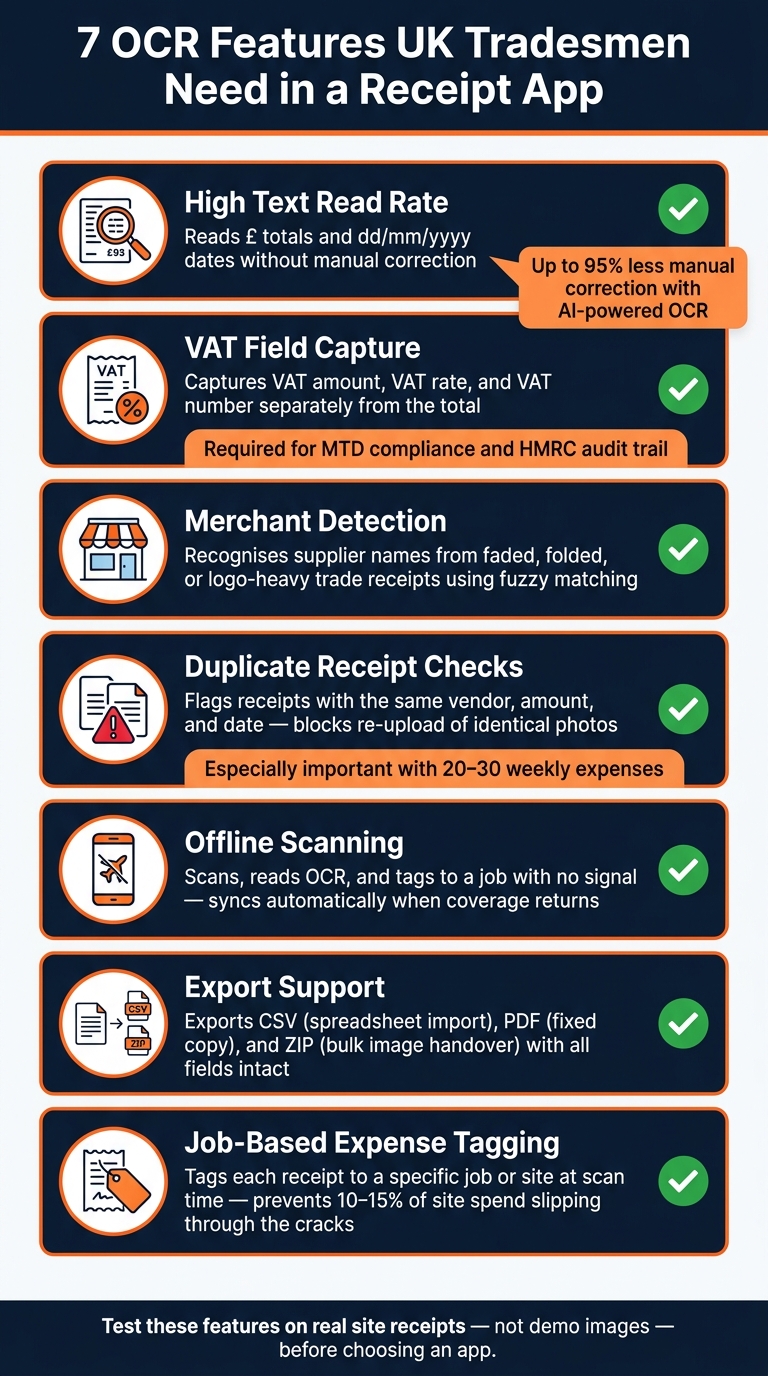
7 OCR Features UK Tradesmen Need in a Receipt App
Quick Comparison
| Feature | What I’d want to see |
|---|---|
| High text read rate | Reads £ totals and dd/mm/yyyy dates |
| VAT field pickup | Stores VAT separately from the total |
| Merchant detection | Matches the right supplier name |
| Duplicate receipt checks | Flags same supplier, amount, and date |
| Offline scanning | Lets me scan and save with no signal |
| Export support | Outputs CSV, PDF, and ZIP |
| Job-based expense tagging | Assigns each receipt to a job at scan time |
I’d use this list as a simple test sheet before picking an app.
sbb-itb-12417dd
What Good OCR Should Do for UK Tradesmen
A receipt app is only worth using if it can pull out the key details without you typing everything in by hand. For UK tradesmen, that means reading the right fields from receipts automatically and keeping records ready for tax time.
Core Fields a UK Receipt App Should Read
At a minimum, OCR should capture the merchant name, date, total in £, VAT amount and VAT number, so the records stay tax-ready.
If the receipt is clear enough, line-item extraction - individual products, quantities and specific prices - is a handy step up.
That’s the baseline. After that, site conditions often make the difference between a smooth scan and a frustrating one.
Site Conditions That Reduce OCR Accuracy
On site, clean capture is the real test. Receipts are rarely in perfect condition for long. Thermal paper fades fast, and a clear receipt can turn patchy once it’s been folded, creased or left knocking about in a van.
The paper isn’t the only problem, either. Poor lighting, glare, and dirty or creased receipts all make it harder for the camera to pick up text cleanly. Mobile signal is often patchy on UK sites too.
The best move is simple: scan receipts at payment, before they get crumpled, faded or lost. Offline capture stores scans locally and syncs them when signal returns.
1. High Text Read Rate
After capture, the first thing to check is simple: did the app read the receipt properly?
OCR read rate measures how often the app pulls text from a receipt without you having to fix it by hand. For tradesmen, a single bad read can throw off job costs or mean VAT never gets claimed.
AI-powered OCR can cut manual correction on site by up to 95%. If accuracy is poor, OCR stops being a time-saver and starts looking a lot like manual data entry.
| Field | What Goes Wrong When It's Misread |
|---|---|
| £ Total | Wrong job cost; reconciliation slows |
| VAT Amount | VAT claim may be missed; audit trail weakens |
| Supplier Name | Auto-categorisation fails |
| Date | Duplicates slip through; audit trail breaks |
This matters even more when you're offline. If the app reads the receipt cleanly on the device, there's less to fix later when records sync.
And there's another layer to it: the app doesn't just need to read text well. It also needs to spot VAT correctly.
2. VAT Field Capture
Reading the total on its own isn't enough. For UK tradesmen, the app needs to split out the VAT amount, VAT rate, and total. That's the part that matters when the app has to check tax data, not just read a receipt.
UK receipts can show standard, reduced, or zero-rated VAT. So the app should keep each tax line separate from the final total. Look for structured data extraction or line-item extraction. In plain terms, that means keeping VAT lines separate instead of pulling only the overall amount.
Once the VAT is split the right way, the next thing to check is whether the record would hold up during HMRC checks. If VAT is captured badly, reclaimable input tax can be missed. The record should store the merchant's VAT number, the check time, and the validation result for HMRC records. HMRC VAT check service validation during capture helps keep the record audit-ready.
3. Merchant Detection
Merchant detection is the app’s ability to read the supplier name properly, even on faded receipts or ones covered in logos. That’s where things get tricky. The hard part isn’t a clean high-street till slip. It’s the trade receipt that’s short, grubby, or badly printed.
Even when the VAT lines are correct, the supplier name still needs to be matched properly. Builders' merchants, fuel stations, and wholesalers often use shortened names, logos, or poor print quality, which basic OCR can miss. Modern apps use AI to match partial text against stored supplier names and past transactions. Fuzzy matching helps when the full name isn’t shown. Location-tagged scans can also check the merchant against known supplier addresses.
Getting the merchant right saves time later, too. If the app recognises the supplier properly, it can sort spending into fuel, materials, or tools with less manual clean-up.
To see if merchant detection is doing its job, check whether the supplier name in your expense log matches the receipt. Also look at whether you keep fixing categories or locations. If a builders' merchant keeps showing up as a restaurant, or the location is off, that’s a clear sign the merchant detection can’t be trusted.
4. Duplicate Receipt Checks
Once the app has read the merchant, amount and date, it also needs to stop the same receipt being claimed twice. Good OCR does more than read receipts. It helps catch repeat claims too.
This happens more often than people think. A receipt can be photographed at the till, then later found in a car, bag or coat pocket and scanned again. Those mistakes are tough to spot by hand, especially when someone is dealing with 20 to 30 weekly expenses.
Duplicate checks should handle this in two ways:
- Compare the merchant name, total amount and transaction date from each new scan against records already in the system. If those details match, the app should flag the receipt.
- If the exact same photo is uploaded again, the system should block it rather than just show a warning.
If the app supports job tags, it should also stop the same receipt being claimed against two jobs.
This becomes even more important when receipts come in through more than one route. For example, a receipt sent by email should not be claimed again later through a scan.
5. Offline Scanning
Once duplicate checks are in place, the next thing to test is simple: does the app still work when the signal disappears? That matters in the UK, where plenty of sites have patchy coverage or none at all.
A good offline-capable app should let you scan the receipt, tag it to a job, and queue it inside the app right away. It should stay there, waiting to sync, not vanish into limbo. Even offline, the app still needs to capture the merchant, date, total and VAT.
When the signal comes back, the app should process and sync the receipt in the background. That’s a big deal. Scanning at the point of payment keeps the details clear in your mind and cuts down the odds of receipts going missing.
Here’s the simplest way to test it:
- Turn off the signal
- Scan a receipt
- Tag it to a job
- Check that it syncs on its own when coverage returns
If you still need to type the details in by hand, the offline mode isn’t doing much.
Once the sync is done, the receipt should be ready for export with no extra admin.
6. Export Support
After capture and sync, the last step is export. In plain terms, that means getting everything out in a clean format your accountant can use straight away.
Use CSV, PDF and ZIP exports. CSV works well for spreadsheet imports, PDF gives you a fixed copy, and ZIP packages receipt images for bulk handover.
A good export keeps the main fields intact. That includes merchant name, date, total, VAT, payment method, and job reference in the right columns. If the VAT field is wrong or the date format breaks, your accountant has to fix it by hand. That eats up time and makes errors more likely.
Site Wallet exports CSV, PDF and ZIP, with job tags carried through for accountant handover. That keeps receipts ready for accounts without another round of admin.
7. Job-Based Expense Tagging
Tag each receipt to the right job as soon as you scan it. That step matters more than it might seem, because a receipt only does its job if the cost ends up in the right record.
Job-based tagging connects each receipt to a job or site at the point of capture. If cash advances aren't tracked, 10–15% of site spend can slip through the cracks. Tagging receipts there and then helps cut that loss.
It also makes billing queries much easier to deal with. Each cost has a clear trail, so you're not left digging around later trying to prove where something came from. Digital tracking can also help you recover costs faster, because clients can see a clear receipt trail.
On multi-site work, this matters even more. It helps stop one job's spend being charged to another. And when it's time for end-of-project reporting or VAT records, you're not sorting through a messy stack of mixed receipts trying to figure out what belongs where.
Site Wallet lets you tag receipts by job at scan time.
That makes job tagging a core OCR check, not something to clean up later.
Feature Comparison at a Glance
Use this table as a quick side-by-side check.
| Feature | Practical Check | Status |
|---|---|---|
| High Text Read Rate | Reads £ totals and dd/mm/yyyy dates | Yes |
| VAT Field Pickup | Captures VAT separately | Yes |
| Merchant Detection | Recognises supplier name from the receipt image | Yes |
| Duplicate Receipt Checks | Flags receipts with the same vendor, amount, and date | Yes |
| Offline Scanning | Scans offline | Yes |
| Export Support | Exports to CSV, PDF and ZIP for bookkeeping and job records | Yes |
| Job-Based Expense Tagging | Tags each receipt to a specific job or site at scan time | Yes |
OCR Weak Spots to Check Before You Commit
Use these checks to see whether the seven OCR features work on actual trade receipts. The point is simple: you want proof they work on-site, under normal job conditions, not just in a polished demo.
Date and Currency Formatting Problems
Start with the fields that most often trip up UK claims: date, £ total, and VAT. Check that UK dates stay in dd/mm/yyyy format, totals keep the £ symbol, and VAT is pulled out as a separate field.
Offline Scanning That Only Saves Photos
Next, check whether offline scanning still reads the receipt before sync. There’s a big gap between an app that runs OCR on the device and one that just stores a photo until the signal comes back. Test whether OCR works on the device itself or only after the image uploads.
The easiest way to check is the Airplane Mode test: turn on Airplane Mode, scan a receipt, and watch what happens. If the merchant name, date, and total appear straight away, the app is running OCR on the device. If the fields stay blank or show a syncing icon, the app is only saving photos, not reading text offline.
A Simple Test Before You Choose
Use your own receipts from live jobs, not neat sample images. Scan real receipts, check the merchant name, VAT, and date, submit one receipt twice, then export the file and verify the figures and format.
Conclusion
A receipt app that only stores photos still leaves the admin work on your plate. What changes the game is OCR that does more than read a blurry image. You want accurate text capture, VAT pickup, merchant detection, duplicate checks, offline scanning, export support, and job tagging. That’s what turns a pile of receipts into records you can use.
Put together, those features help keep receipts accurate, cut down double claims, hold onto data when you’re offline, and make exports for accounting much faster.
If your team wants all of that in one place, Site Wallet brings together receipt scanning, job tagging, cash tracking, and exports for tradesmen and small crews.
Test these checks on a batch of live receipts before you pick an app.
FAQs
How do I test OCR properly?
Test OCR with a mixed batch of receipts. Use different layouts, poor lighting, and receipts that are folded or crumpled. The goal is simple: make sure it keeps picking up vendor names, totals, and dates with a high level of accuracy.
You should also check VAT field pickup. And upload the same receipt more than once to test duplicate detection, so repeat or fraudulent entries don't distort your Site Wallet records.
Does offline scanning still read VAT?
It’s not clear from the available information whether offline scanning still pulls VAT fields.
Site Wallet is described as scanning receipts and auto-extracting key details such as the vendor, total, and date, then exporting that data. But when it comes to VAT capture while offline, that specific detail isn’t mentioned.
What should a clean export include?
A clean export should include well-organised expense data in standard formats such as PDF or CSV. It should show the key details at a glance:
- Vendor name
- Total amount
- Date
- Assigned category
For tradesmen, it also helps to tag expenses by job or project. That way, you can see where the money went without digging through receipts later.
Exports that work smoothly with accounting software cut down on manual input mistakes and keep your records ready for reconciliation.