
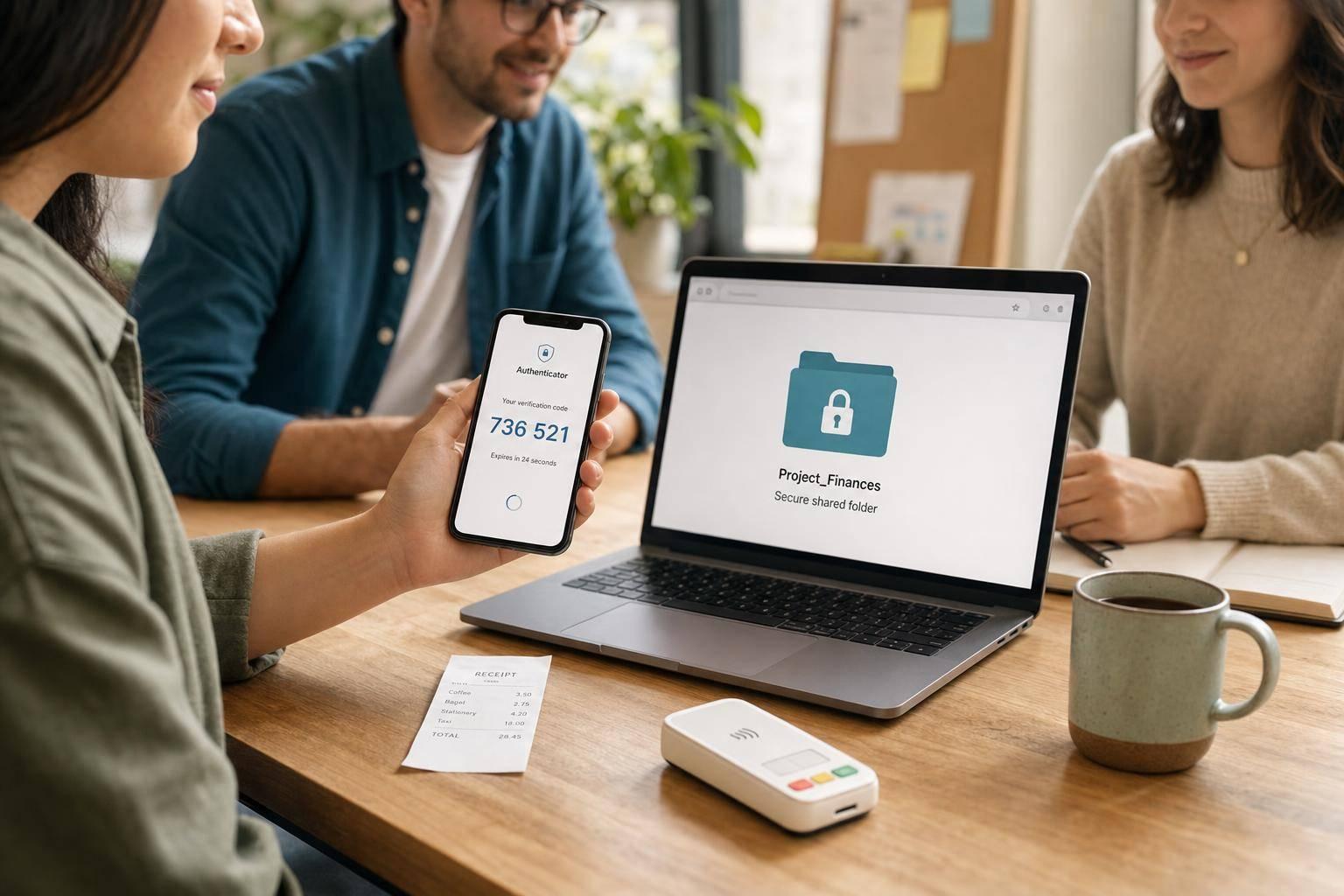
Secure Sharing for Small Crews: Tips and Tools
If your crew shares receipts, bank details or payroll info by email, text or one shared login, you’re taking a risk. In 2023, 39% of UK businesses said they had found a cyber attack, and from April 2026, many sole traders earning over £50,000 will also need digital records for tax.
If I had to boil this down, I’d keep it simple:
- Use a different password for each account
- Turn on app-based MFA
- Share files with secure links, not plain attachments
- Limit access by role
- Check payment detail changes by phone on a saved number
- Keep records in tools built for storage, not chat apps
The article’s main point is straightforward: good habits matter more than fancy software. Tools like Site Wallet, 1Password, Tresorit, Signal, OneDrive, Google Drive, and Dropbox each have a clear job. One tool stores receipts, one stores logins, one shares files, and one handles short messages. Mix those jobs up, and problems start.
Here’s the short version of how I’d think about each one:
- Site Wallet: for receipt and petty cash records on site
- 1Password: for shared logins and backup codes
- Tresorit / OneDrive / Google Drive / Dropbox: for file sharing and exports
- Signal: for short, sensitive messages only
Quick Comparison
| Tool | Best for | Avoid using it for |
|---|---|---|
| Site Wallet | Receipts, petty cash, job-tagged expense records | Team chat or password storage |
| 1Password | Shared logins, secure notes, 2FA backup codes | Storing full finance files |
| Tresorit | Sending finance files with expiry and access logs | Team messaging |
| Signal | Short checks and urgent messages | Long-term records or full payment data |
| OneDrive | Shared folders, tax files, accountant access | Casual oversharing with open links |
| Google Drive | Shared business-owned file storage | “Anyone with the link” finance sharing |
| Dropbox | Simple shared finance folders and exports | Loose folder access with no review |
So if you want the shortest answer, it’s this: lock down accounts first, then pick one place for records, one place for passwords, and one place for short messages. That keeps your crew’s finance data safer without adding much extra admin.
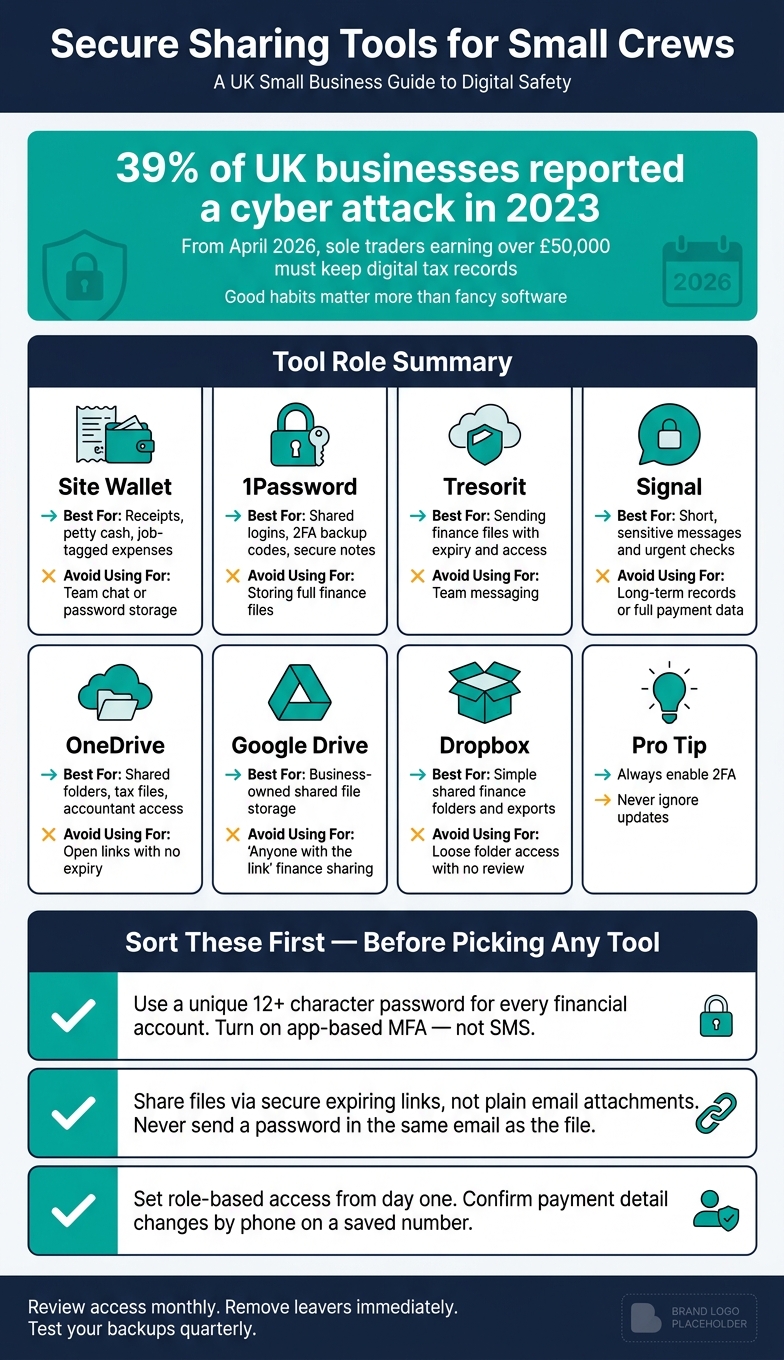
Secure Sharing Tools for Small Crews: What Each Tool Does
What Small Crews Should Sort Out Before Choosing Any Tool
Get the basics in place before you pick any tool. A new app won’t clean up weak habits.
Start with account security. Then fix how files are shared. After that, lock down payment approval.
Use strong passwords and turn on multi-factor authentication
Every account that touches financial data - email, banking and accounting software - should have its own password, with at least 12 characters.
That sounds like a hassle until you use a password manager. It can generate strong passwords, store them and fill them in for you, which takes a lot of the friction out of doing this properly.
Multi-factor authentication should be switched on too. Use an authenticator app instead of SMS codes, since text messages are easier to intercept.
Stop sending financial files as plain email attachments
Plain email attachments are a weak spot. Once a file is sent, you no longer control where it goes. It can sit in inboxes for years, get forwarded to the wrong person, or move around without encryption.
A safer option is to share sensitive files through a secure link with an expiry date and sign-in required. If email is the only option for something sensitive, password-protect the file first. Then send the password by SMS or give it over the phone - never in the same email.
Limit access by role from day one
Now deal with access.
Set role-based access from the start so each person only sees the files they need for their job. That keeps sensitive records in fewer hands. And if one account is compromised, the fallout is much smaller.
Confirm payment changes through a second channel
Payment changes need one extra check: a call-back rule.
Attackers can slip into email threads and send follow-up messages with changed bank details. It looks routine, and that’s the problem. If a supplier, subcontractor or client sends new payment details - even from an address you know - call them back on a number you already have saved before sending any money.
Make this a non-negotiable rule for anyone who handles payments.
sbb-itb-12417dd
1. Site Wallet
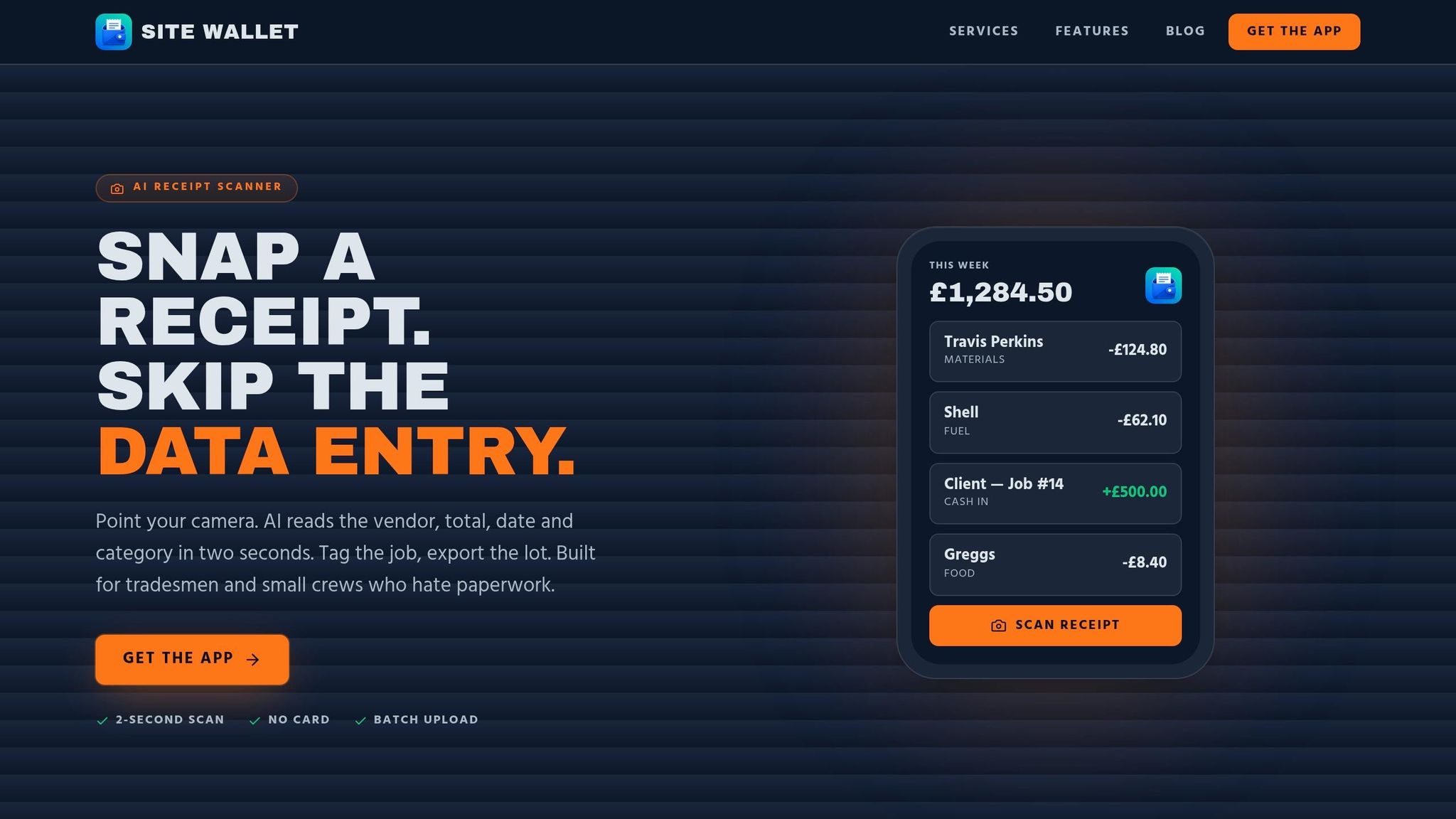
Once access rules are set, Site Wallet keeps receipts, approvals and exports in one workflow.
Site Wallet helps tradespeople and small crews track receipts on site, tag expenses by job and keep petty cash records in one controlled place. Crew members can scan receipts, tag each expense to a specific job and send it through the app, so receipt capture stays in-app. Role-based access means people only see what they need to see: crew members send their own entries, while site leads review and approve spending in real time.
When records need to move out of the app, the exports stay tidy. Site Wallet supports PDF, CSV and ZIP exports. PDFs work well for clean summaries you can share with an accountant. CSV exports make more sense when you want to import transaction data into accounting software. ZIP exports put records and receipts into one file.
2. 1Password
If Site Wallet stores receipts and exports, 1Password stores the logins that get you into the money systems behind them. Use it for banking portals, HMRC Gateway, and supplier accounts.
1Password uses end-to-end encryption, plus a master password and Secret Key. For small teams that share finance and supplier logins, that zero-knowledge setup helps keep passwords out of text threads and email chains.
You can split logins into separate vaults, such as finance and operations, then set role-based access for each one. That makes day-to-day access easier without giving the same login to everyone. And if you need to send a one-off detail to an external accountant, a secure time-limited link lets you do that without handing over a full account.
Watchtower flags weak, reused, or breached logins in shared vaults, so you can catch issues early. For file sharing, use tools built for documents, not logins.
3. Tresorit
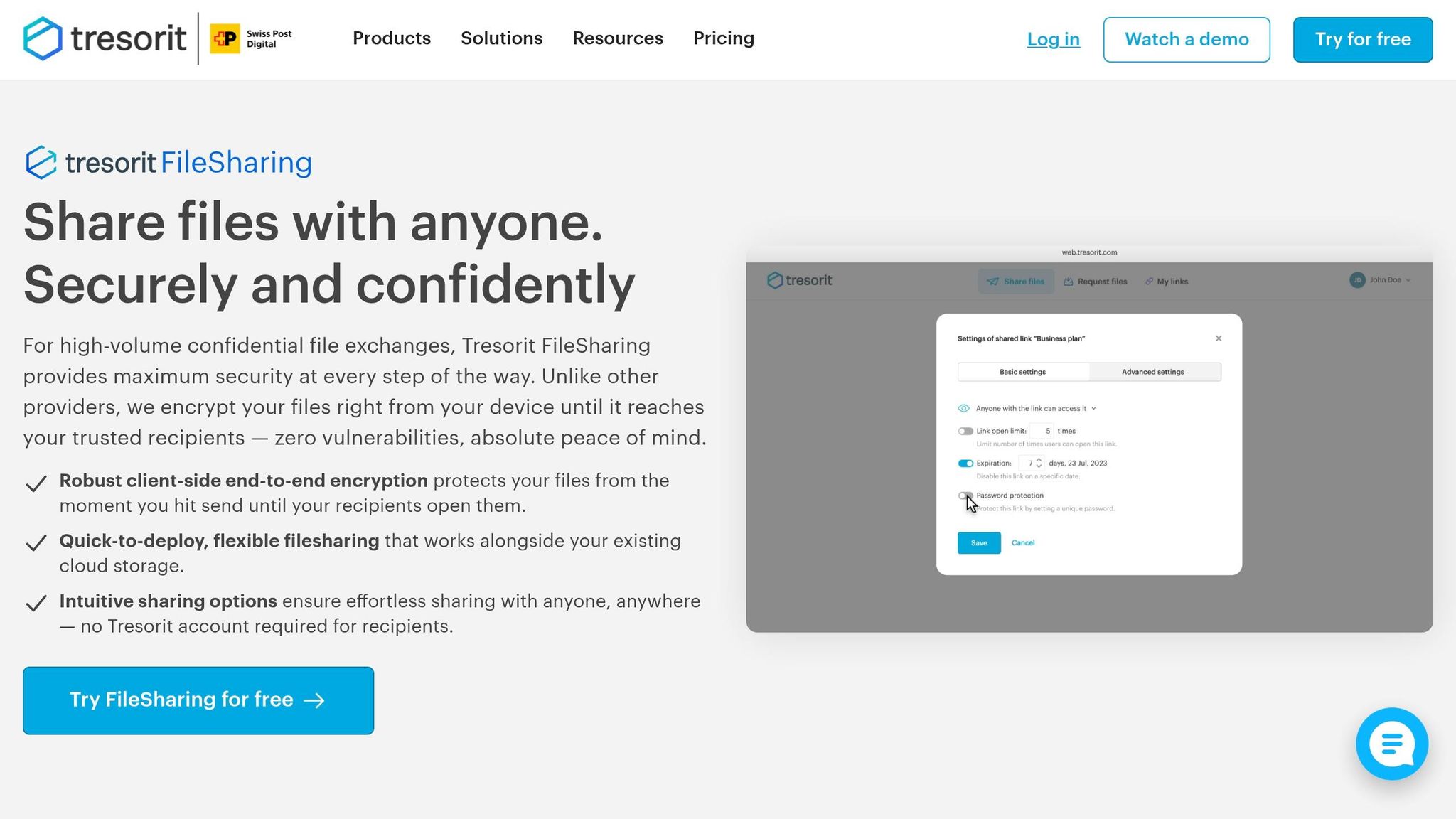
For file sharing that goes beyond email, Tresorit works well for receipt scans, CSV exports, and signed PDFs that need more control. It uses client-side encryption, which means files are encrypted on your device before they’re sent, and Tresorit itself can’t read what you store.
You can send monthly exports to your accountant with password-protected, expiring, view-only links. That gives you a lot more control than firing attachments back and forth over email.
It also helps on the way in, not just on the way out. With File Request, you can collect receipt photos in a protected folder without giving crew members an account. In plain terms, that means fewer group chats, fewer messy email chains, and fewer blurry receipt photos buried in the wrong thread.
Access logs show who opened a file, when they opened it, and where from. Those logs stay available for 90 days even after a link has been revoked. That’s handy during audits and internal reviews.
Tresorit also supports GDPR and UK data protection requirements. For small UK crews sharing records with a bookkeeper, that level of control can make day-to-day admin a lot less messy.
4. Signal
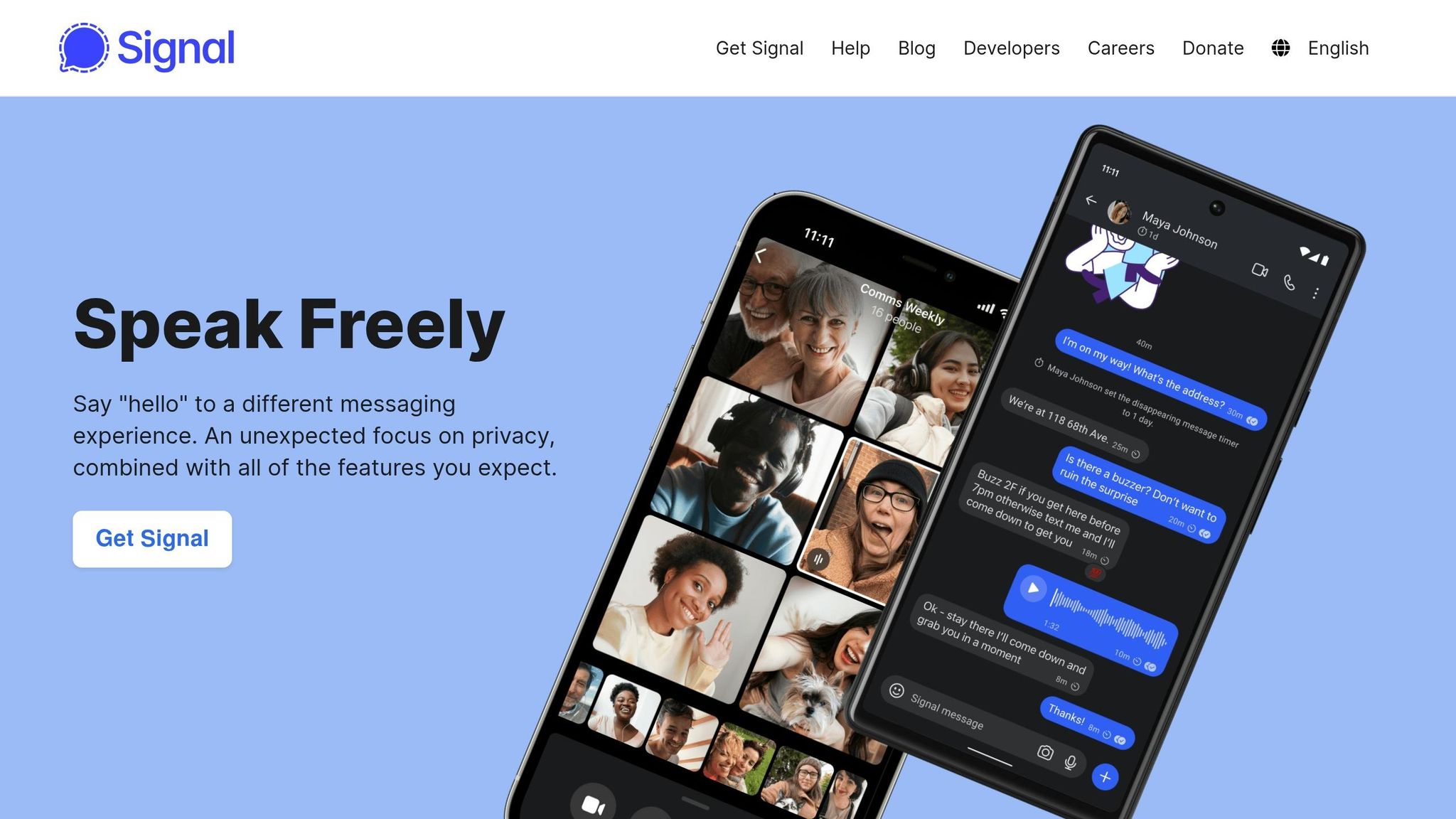
For fast, sensitive messages, Signal works well as the chat layer, not the storage layer. It uses end-to-end encryption by default for text, voice, video and file transfers. That means only the sender and receiver can read what’s sent.
In practice, that makes Signal handy for things like confirming a payment change, chasing an urgent on-site query, or checking safety numbers before sending money.
The catch is straightforward: Signal is not a recordkeeping tool. If disappearing messages are on, the trail you may need later can vanish. So keep approvals, receipts and exports in a system that has a proper audit trail.
There’s another plain risk too. If a phone is unlocked, anyone holding it can read the chat. Turn on Screen Lock, enable Registration Lock in Settings > Privacy, and hide sender names and message previews on the lock screen.
Use Signal for urgent coordination. Keep the paperwork somewhere else.
| Use Signal for | Keep out of Signal |
|---|---|
| Quick budget updates on site | Full passwords, PINs or CVV numbers |
| Checking changed bank details | Contracts, tax returns and other official records |
| Urgent crew coordination | Petty cash approvals that need an audit trail |
| Confirming identity before paying | Long-term financial records |
5. Microsoft OneDrive
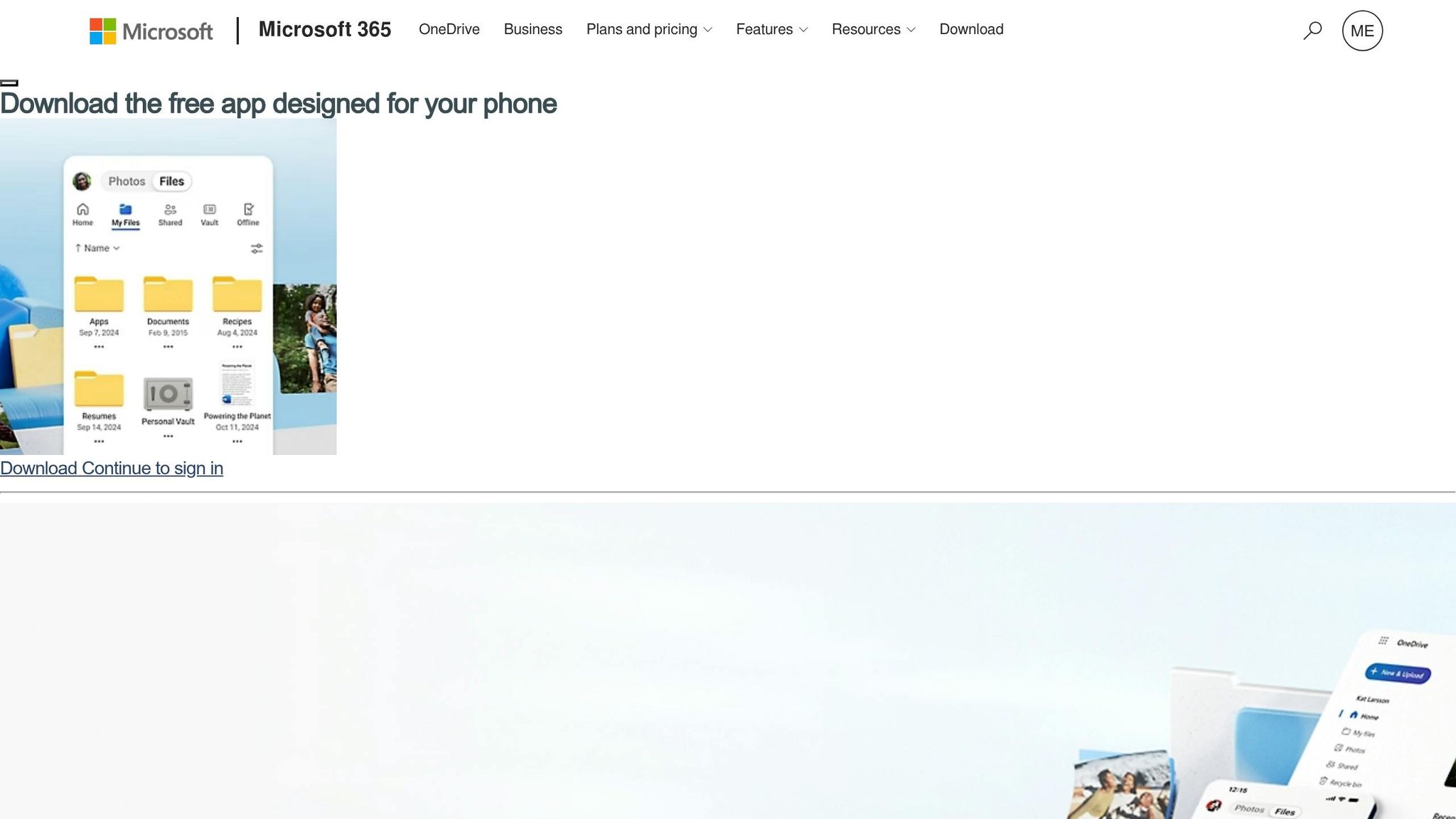
For shared folders and exports, OneDrive gives small crews more control than email. It works well for receipts, PDFs and CSV exports, and sharing links are safer than sending files as attachments.
The sharing controls fit crew-based workflows nicely. You can restrict links to Specific people, set an expiry date and add password protection. For outside bookkeepers, expiring links make sense. For site leads, use Can view with Block download so they can check job costs without saving a copy.
Use Personal Vault for tax records and payroll summaries. It adds a second unlock step and locks itself after a period of inactivity. You can also scan receipts straight into Personal Vault, which keeps them out of the camera roll.
It’s also worth checking Shared by me once a month to remove old links for staff who’ve left and jobs that are done. And if someone overwrites a spreadsheet, version history lets you restore it within 30 days.
Use these controls alongside role-based permissions so each person only sees what they need.
| Setting | What it does | Who needs it |
|---|---|---|
| Specific people | Restricts access to named individuals only | Bookkeepers, external accountants |
| Block download | Lets recipients view a file in the browser without saving a local copy | Site leads checking job costs |
| Link expiry | Automatically revokes access after a set date | Temporary crew, short-term contractors |
| Personal Vault | Adds an extra authentication step for highly sensitive records | Owners, payroll and tax documents |
| "Shared by me" audit | Shows active links for monthly review | Owners |
6. Google Drive
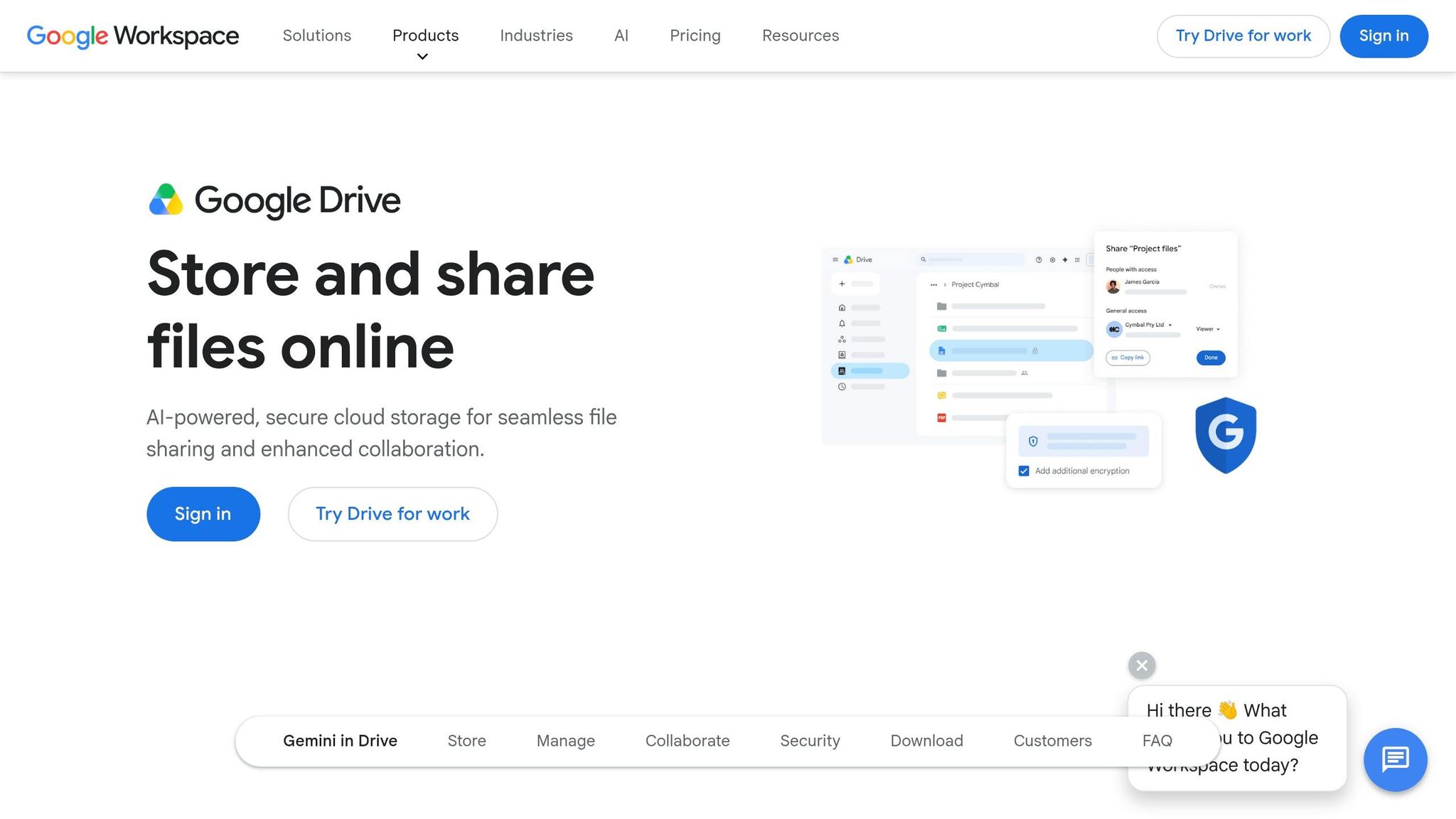
For crews already on Google Workspace, Shared Drives are the safer way to handle finance files. The big reason is simple: the files belong to the business, not to one person’s account. That matters a lot for receipts, PDFs and CSV exports. If the person who set up the files leaves, your job-cost records are still there and still available.
Once your files are in a Shared Drive, tighten up permissions straight away. Give Contributor access to crew members who only need to upload files. Use Content Manager for site leads who need more control. Set external bookkeepers to Viewer. For Viewer access, turn off downloading, printing and copying. Payroll and tax records should sit in restricted folders inside the Shared Drive, not mixed in with day-to-day project files.
You should also turn off "Anyone with the link" sharing in the Admin console. And for finance records, switch off "Publish to the web" so those files can’t end up on public URLs.
If you want to check who changed what, use audit logs to review sharing activity and permission changes.
| Role | Can Edit | Can Delete | Can Manage Members | Best For |
|---|---|---|---|---|
| Manager | Yes | Yes | Yes | Business owner, lead bookkeeper |
| Content Manager | Yes | Yes | No | Site leads, project managers |
| Contributor | Yes | No | No | Crew members uploading receipts |
| Viewer | No | No | No | External accountants, auditors |
7. Dropbox
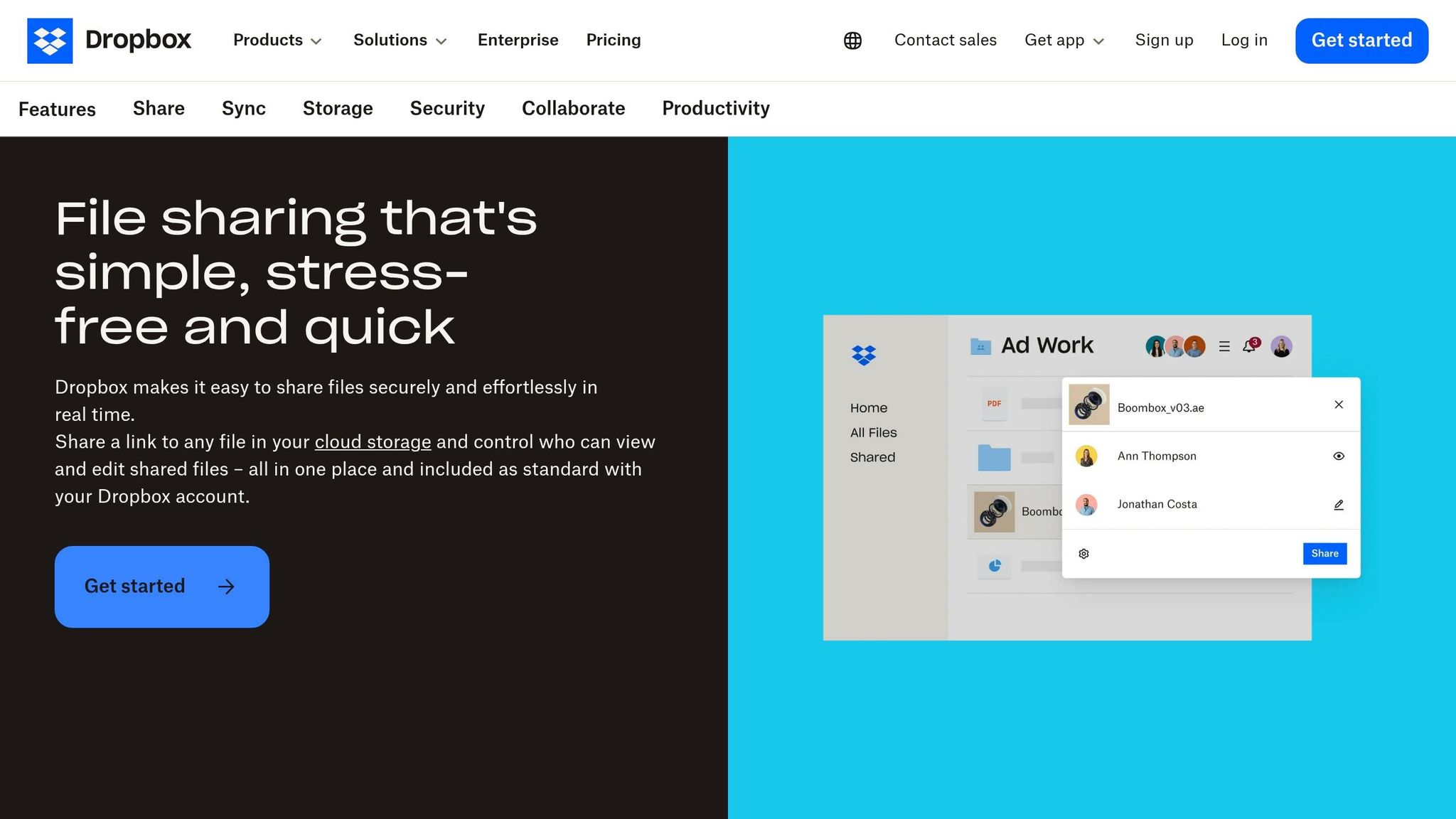
Dropbox works well when you need a simple shared folder for finance files. Use it for shared receipts, PDFs, and CSV exports when basic folder permissions are enough. Files are encrypted at rest and in transit.
Keep access tied to each person's role. Dropbox has three permission levels: Owner, Editor, and Viewer. Give Viewer access for statements and CSV exports. Site leads can have Editor access, while external bookkeepers can stay on Viewer. For sensitive PDFs, turn off downloads so people can only view them in the browser.
| Role | View/Download | Edit/Delete | Invite Others |
|---|---|---|---|
| Owner | ✓ | ✓ | ✓ |
| Editor | ✓ | ✓ | ✓* |
| Viewer | ✓ | ✗ | ✗ |
*Can be disabled by the Owner.
Set sharing to "Only people invited" so files stay private. If you need to send exports to an accountant, use a password-protected link and add an expiry date.
For audit checks, admins on paid plans can export CSV activity reports that show logins, sharing, and membership changes. And if a crew member leaves or a device goes missing, you can trigger a remote wipe of the Dropbox folder on that device once it reconnects to the internet.
When to Use a Password Manager, Secure Portal or Messaging App
Match the tool to the task, not the other way round. Give each one a single role: access, storage or quick chat.
Use a password manager for shared account access
Keep shared logins in a password manager, not in a text message or email. Use it for shared logins, 2FA backup codes, and secure notes that include account references, bank reference numbers, and security answers.
A good rule of thumb: write "Password is in 1Password" in a shared record instead of putting the password there.
Use a secure portal or cloud folder for statements and exports
Statements, receipts, tax returns, and reports should sit in a controlled cloud folder or portal, not in someone’s inbox. Set access by role so each person only sees what they need.
If you’re sending receipts, petty cash summaries, job-cost exports, or supplier invoices to an accountant or external reviewer, use expiring links for external sharing.
Use encrypted messaging for quick updates, not full records
Encrypted messaging works well for quick checks, such as asking someone to review a file or confirming that a receipt is ready. Think short updates, not full document handling.
Don’t use messaging apps for bank details, card data, payroll, or full records.
Use this simple split as a rule of thumb:
| Tool Type | Use It For | Never Use It For |
|---|---|---|
| Password Manager | Shared logins, 2FA backup codes, secure notes with account references | Full files |
| Secure Portal / Cloud Folder | Receipts, petty cash summaries, job-cost exports, tax records | Live chat |
| Encrypted Messaging | Status updates, file review requests | Bank details, card data, payroll |
Once the tool type is clear, the next step is choosing the safest sharing method for each file.
Email Attachments vs Secure Links vs Password-Protected PDFs
Once passwords, MFA and access limits are set, the next step is deciding how to send files without giving up control. Some methods give you none. Some give you a bit. Others let you stay in charge from start to finish.
Plain email attachments give you almost no control after sending. The file ends up in your sent folder, the recipient’s inbox and mail servers outside your control. If someone forwards it, that’s it - you can’t pull it back.
Password-protected PDFs are a step up from plain attachments, but they still have clear limits. There’s no audit trail, and you can’t revoke access after the file has been opened. That makes them fine for some one-off uses, but not for documents you may need to track later.
Secure links and portals are usually the best fit for financial documents that need tighter control and a clear record of access. The file stays in one place, you can revoke access at any time, and you can log who opened what and when.
| Method | Security Level | Best Use Case | Common Mistake |
|---|---|---|---|
| Plain Email Attachment | Low | Public brochures, generic templates | Sending to personal inboxes |
| Password-Protected PDF | Medium | One-off, low-sensitivity docs | Sending the password in the same email |
| Secure Link / Portal | High | Financial exports, tax records, payroll | No expiry set on the link |
For small crews, the right choice comes down to a simple point: does the file need to be read, tracked or stored? If the answer is yes, don’t just attach it and hope for the best.
A few settings make a big difference:
- Set link expiry to 48–72 hours for sensitive documents and 7–14 days for standard client deliveries.
- Use view-only permissions where possible to cut down on local copies.
- Redact any personal details the recipient doesn’t need before sharing bank statements or multi-page reports.
Send business documents only from business accounts. Personal email addresses strip away the security controls, MFA and backup policies that a proper work account provides. After that, set role-based access so only the right people can open each file.
Access Rules for Crew Members, Site Leads and Bookkeepers
Set role-based access before anyone uploads or approves financial data. That step matters more than many firms think. Small businesses lose an estimated 5% of their annual revenue to fraud, and one common reason is access that’s too broad or badly controlled.
The goal is simple: stop every crew member from seeing every file.
Crew members: submit receipts and view only their own entries
Most people on site only need to do a few things: upload receipts, add notes to their own entries, and check what they’ve submitted. Give them an Employee role that covers exactly that.
They should be able to:
- scan and submit proof of spend
- add notes against their own entries
- view their own transaction history
They should not be able to see company-wide balances or other crew members’ data.
Site leads: approve spending and check job costs
Site supervisors need more visibility than crew members, but they don’t need the keys to the whole system. A site-scoped Leader or Manager role usually does the job.
That role should let them review expenses, approve spend, and check job costs. But they should not be able to create new users or manage company-wide cards. This gives them enough access to keep work moving without handing over full account control.
Owners and bookkeepers: export reports and manage permissions
Full admin access should be kept for owners or named Super Admins only. That includes creating cards, managing user permissions, and exporting full account data.
Bookkeepers and accountants usually need read-only or view-only access. That way, they can download statements, reconcile the books, and run reports without being able to move money or change account settings.
Review access monthly and remove leavers promptly
Access rules aren’t something you set once and forget. Review permissions every month and remove access on the day someone leaves.
For temporary roles and subcontractors, set expiry dates in advance so access ends on its own. It’s a small step, but it saves a lot of hassle later.
| Role | Access Level | Key Permissions |
|---|---|---|
| Crew Member | Own entries only | Upload receipts, add notes, view own transactions |
| Site Lead | Group/site scope | Review expenses, approve team spend, check job costs |
| Bookkeeper | Read-only | Download statements, reconcile books, run reports |
| Owner/Admin | Full access | Manage permissions, create cards, full account control |
Pick tools that let you enforce these roles properly, without shared logins or messy one-off exceptions.
How Site Wallet Fits Into a Secure Sharing Workflow
Here’s how Site Wallet fits the secure-sharing rules already covered.
Capture receipts on site and tag them by job
Crews can record a receipt there and then, then tag it to the right job straight away. OCR can pull the store name, date, total and VAT from a receipt photo, which cuts down manual entry.
Track petty cash without passing notes and photos around
For petty cash, keep the record in the app instead of sending photos back and forth in chat threads. Site Wallet keeps petty cash in one secure, searchable place.
Export PDF, CSV or ZIP files for accountants and reviews
Use the format that fits the task. Export CSV for bookkeeping, PDF for summaries, and ZIP for full handovers. Then share those exports through a secure cloud folder or a time-limited link, not as a plain email attachment.
Pair Site Wallet with passwords, MFA and access controls
Use Worker and Owner roles to keep submissions separate from exports. Then add a password manager, MFA, and controlled cloud storage for any files that leave the app.
Once sharing is under control, the devices holding those records need the same discipline.
Device Hygiene and Backups That Prevent Small Problems Growing
Once sharing is under control, the next step is simple: lock down the devices that hold the files. One lost phone or one tablet that missed its updates can wipe out the care you’ve taken elsewhere.
Keep phones, tablets and laptops updated
Turn on automatic updates for your operating system and apps so patches install without you having to think about them. It’s also worth deleting apps you no longer use.
Updates fix known security holes that attackers are already using.
Use screen locks and short auto-lock times
Put a 6-digit PIN or a strong password on every device that handles receipts or financial records. Skip easy patterns like 000000 or 123456. Fingerprint or face recognition is fine for ease of use, but keep a backup PIN in place too.
Set devices to auto-lock after 1 minute of inactivity. A short auto-lock window cuts the risk when a device is left unattended.
Turn on full disk encryption as well: BitLocker on Windows and FileVault on Macs. If someone steals the device, encryption keeps the data unreadable without the password. You should also enable "Find My iPhone" or "Find My Device" so you can track missing hardware and erase local data if needed.
Back up records to a secure, access-controlled location
Security matters, but recovery matters too. If you can’t get files back, the rest doesn’t help much.
Use the 3-2-1 rule: three copies, two storage types, one off-site. On cloud storage, set role-based access so only owners and bookkeepers can open the backup folder. It’s also worth looking at immutable off-site backups. Those can’t be overwritten or deleted, even by someone with admin access.
"A backup you've never restored from is a hope, not a backup." - Andy Price, Founder, Initial IT
Test a restore at least once every quarter so you know the files still work and can actually be used.
Run a simple monthly security check
The table below covers the main tasks:
| Check | Action | Why It Matters |
|---|---|---|
| Software | Confirm OS and app updates are installed | Closes known vulnerabilities |
| Backups | Restore a test file to verify the backup works | Confirms the backup works |
| Access | Check permissions | Prevents over-sharing |
| Leavers | Remove former crew members and rotate any shared passwords they knew | Removes old access |
Remove leavers from Site Wallet, cloud storage and the password manager on the same day.
Conclusion
Once the rules are set, the main job is keeping them simple and consistent. Small crews can protect financial data with a handful of clear habits. The biggest problems usually come from weak passwords, unsafe file sharing, and loose access controls.
Start with account security. Only around 40% of UK businesses use multi-factor authentication, so switch it on for business email and banking first. Then add a password manager to help protect the accounts that matter most.
For day-to-day receipt capture, use a tool built for the way your team works. Capture receipts on site with Site Wallet so records are scanned, job-tagged, and ready to export. Use secure sharing links instead of attachments, and set role-based access from day one.
The right tools help keep security tight without adding extra admin, so the crew can get on with the job.
FAQs
What should we secure first?
Start with identity and access. Turn on multi-factor authentication (MFA) for every business-critical account, especially email, banking, and payment systems.
Then use a password manager to create strong, separate passwords for each account. It also helps to review account ownership and access on a regular basis, so each crew member can only see the data they need.
Who should have access to finance files?
Only people who need finance files to do their job should be able to see them. The rule here is simple: follow the principle of least privilege. Give people access only to the information they need, and only for the time they need it.
Use role-based permissions and individual logins rather than shared accounts. Keep tight control over sensitive data such as payroll, client payment details, and supplier bank account information. If someone leaves the business or moves into a different role, remove their access straight away.
How often should we review access and backups?
Review access every quarter so permissions stay appropriate and don’t pile up over time. If someone changes roles or leaves, remove their access straight away.
For backups, keep extra copies in the cloud and on a secure offline device. Also check login activity on a regular basis for unusual patterns or unauthorised access.